# Workflow Extension
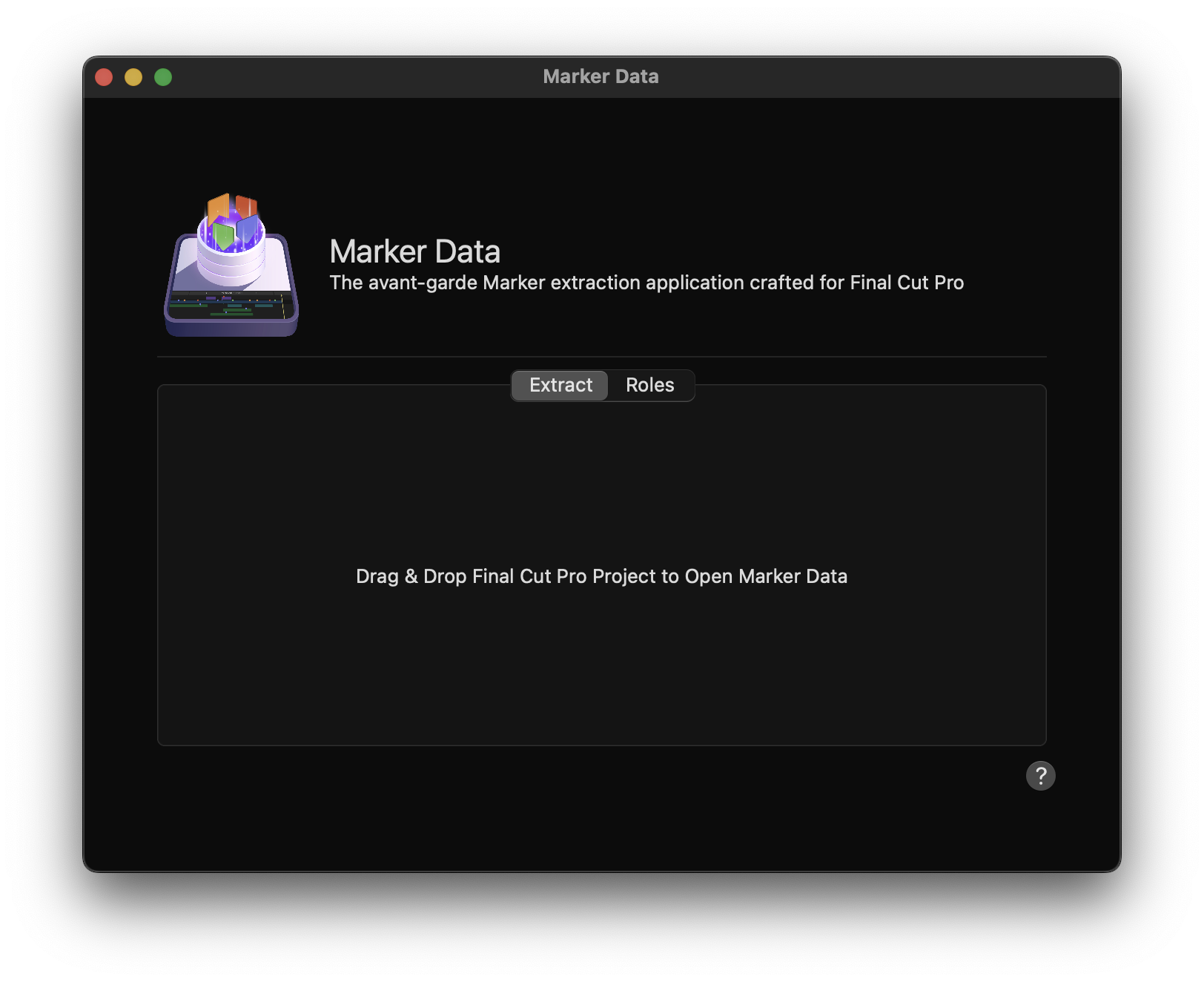
## Extract
**Marker Data** has its own Workflow Extension. Click the `Extensions` button on the left side of the **Final Cut Pro**’s toolbar.

!!!info Info
The Extensions button appears only when extensions apps are installed.
!!!
Initiate the extraction process by dragging your desired `Timeline` from your **Final Cut Pro**’s `Browser` into the `Workflow Extension`, beneath the Extract Tab. Subsequently, **Marker Data** will promptly launch to commence the extraction process. **Marker Data** will automatically utilise [Active Configuration](/user-guide/configurations/#make-active-configuration) during the extraction process.
!!!info Info
When using the Extract Tab within the `Workflow Extension` of **Marker Data**, it is important to note that images will not be included in the extraction process. For a comprehensive extraction encompassing both images and Marker metadata, please utilise **Marker Data**’s [Share Destination](/user-guide/share-destination).
!!!
## Roles
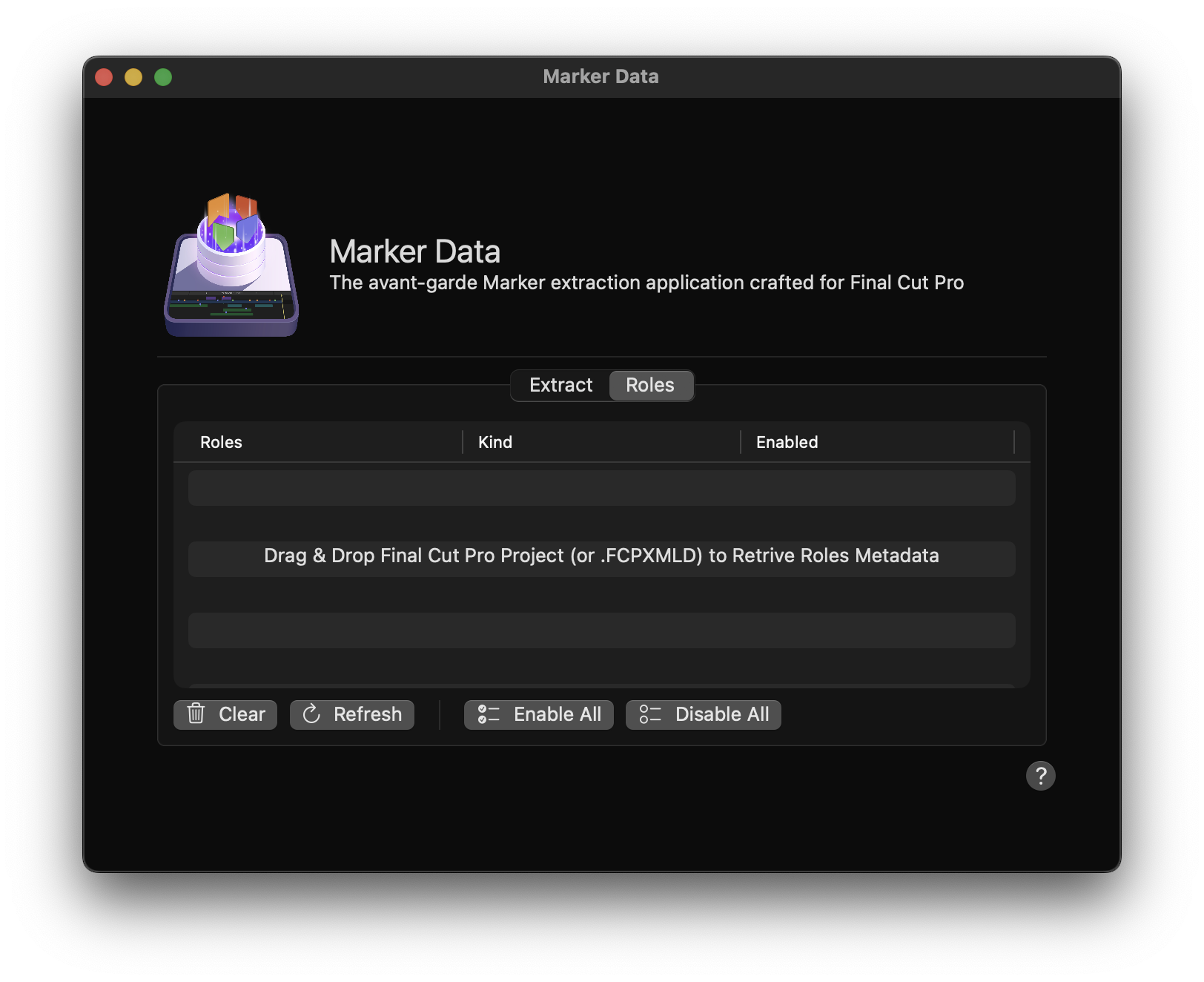
Within the refined capabilities of **Marker Data**, users are empowered to make specific `Role` selection during the extraction process. By dragging and dropping the desired project from the **Final Cut Pro**’s `Browser` into the Roles Tab within the `Workflow Extension`, **Marker Data** would retrieve metadata associated with the designated `Roles`. Subsequently you can `Enable` or `Disable` `Roles` based on their preferences.
The extraction process can then be started through either **Marker Data**’s [Share Destination](/user-guide/share-destination) or the [Extract Tab](/user-guide/workflow-extension/#extract) within this Workflow Extension.
By [!badge text="Default"], **Marker Data** extracts all roles. However, the Role tab permits targeted extractions based on your specific role selections. Workflow Extension's Role tab is always synchronised with the [Roles tab of the General Settings](/user-guide/general/#roles).
!!!info Info
You may be required to perform [Update Active Configuration](/user-guide/configurations/#update-active-configuration) to preserve your role selections during the extraction process.
!!!
### Clear
The `Clear` button removes any existing Roles that have been retrieved.
### Refresh
`Workflow Extension` automatically synchronises role selections with the [Roles tab of the General Settings](/user-guide/general/#roles). However, delays in synchronisation may occur in large and complex projects (Timelines). In such instances, you may use the `Refresh` button to initiate and enforce a manual synchronisation.
### Enable All
Pressing `Enable All` will check all roles selection.
### Disable All
Pressing `Disable All` will uncheck all roles selection.