# General Settings
## Export Destination
### Destination
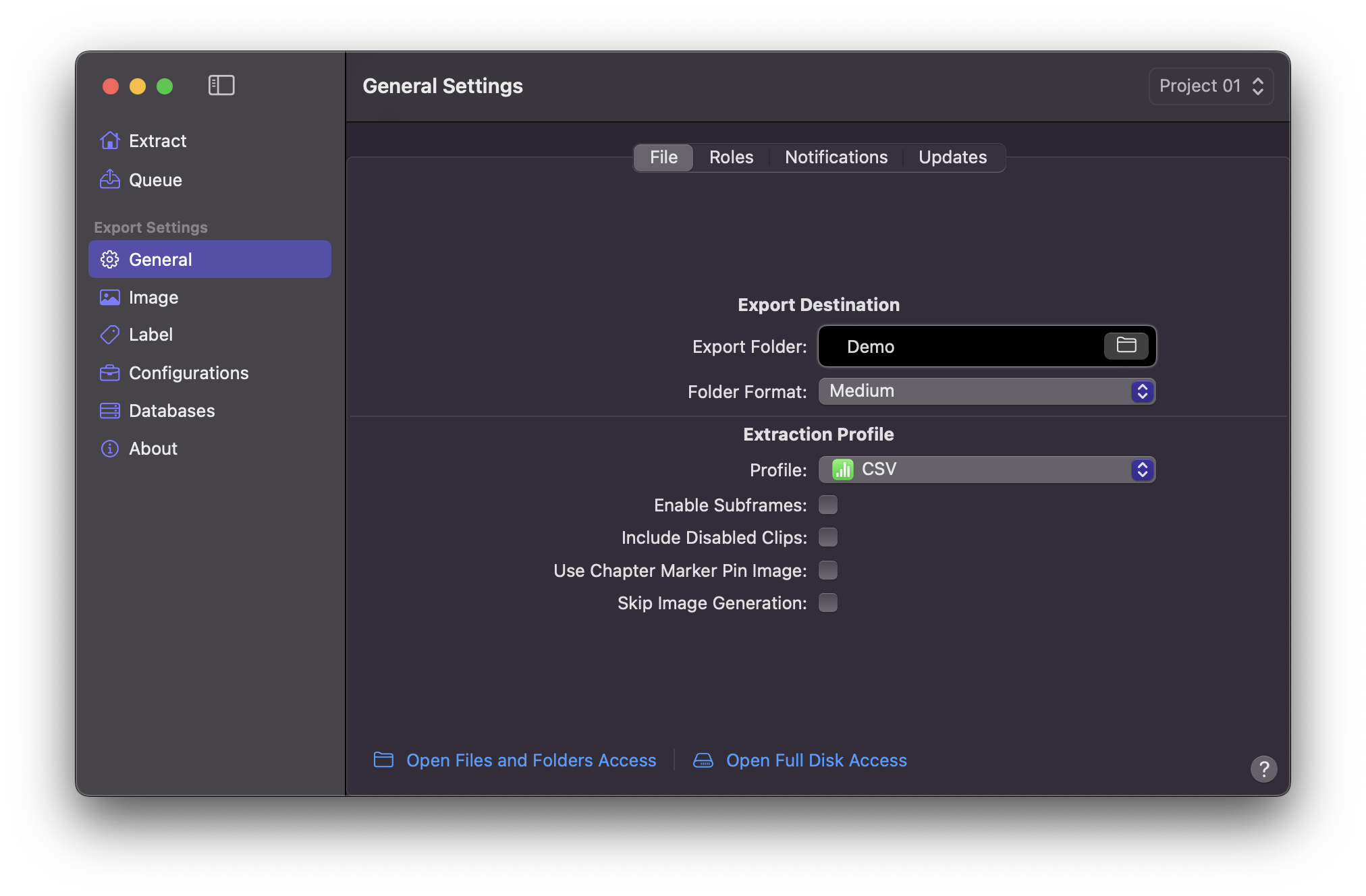
You can select your desired location by clicking on the Folder Icon. Upon right-clicking folder icon, **Marker Data** will show the `Full Path` associated with said folder.
### Folder Format
The Folder Format feature allows you the capability to designate a folder naming scheme of your preference. In order to mitigate conflicts and potential overwrites of previously generated files, both the `Medium` and `Long` Folder Formats incorporate the inclusion of the `Current Date` and `Current Time` within the nomenclature. Consequently, each extraction yields a distinct and uniquely identified result.
Select your desired Folder Format.
- **Short**
- **Medium** [!badge text="Default"]
- **Long**
!!!info Info
Short
`Marker Data Demo_V1`
Medium
`Marker Data Demo_V1 2023-03-21 09-45-22`
Long
`Marker Data Demo_V1 2023-03-21 09-45-22 [Notion]`
!!!
## Extraction Profile
### Profiles
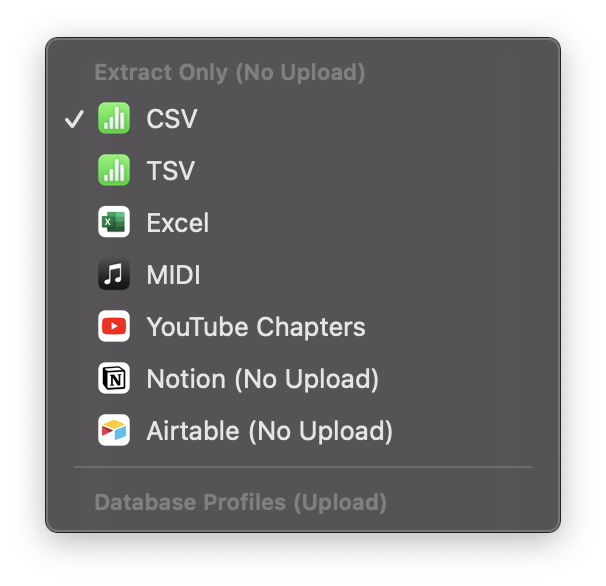
Select your desired Extraction Profile.
- Extract Only (No Upload)
- **CSV** [!badge text="Default"]
- **TSV**
- **Excel**
- **MIDI**
- **Markdown List**
- **SubRip Subtitle**
- **YouTube Chapters**
- **Compressor Chapters**
- **Notion (No Upload)**
- **Airtable (No Upload)**
- Database Profiles (Upload)
- When you create a [Database Profile](/user-guide/databases), it will be listed here.
### Enable Subframes
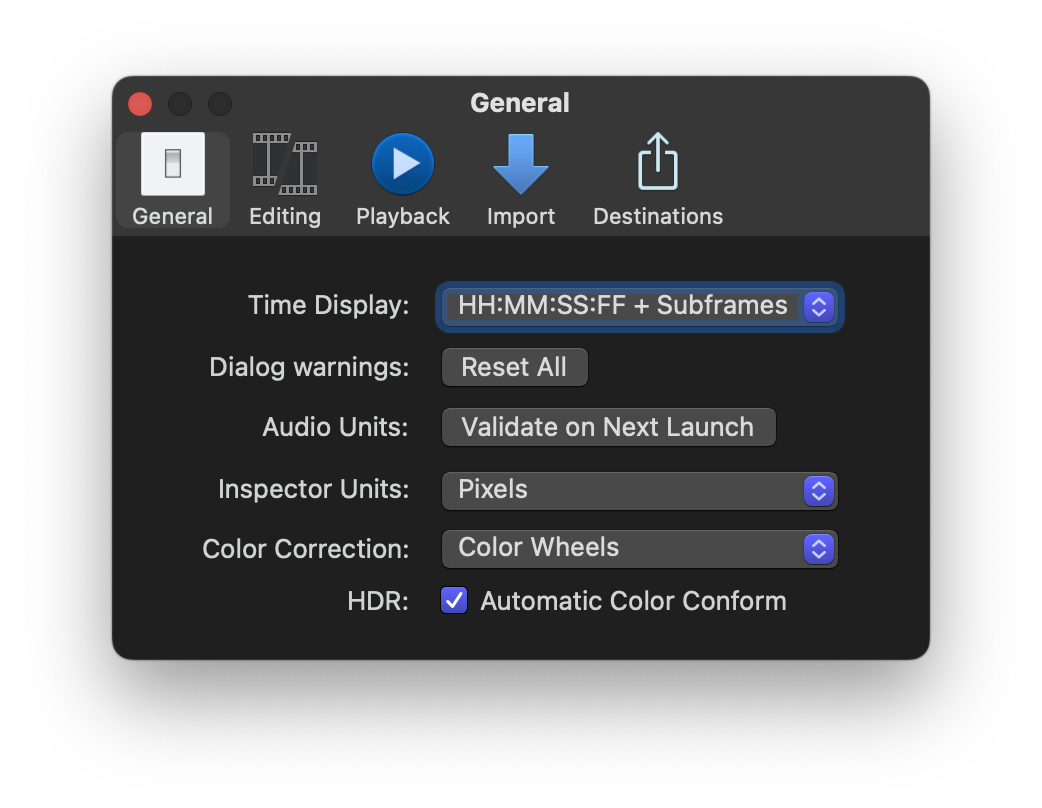
**Final Cut Pro** allows the you to view timecode at the subframe level.
!!!info Info
A subframe has 1/80 the duration of a video frame and is a more precise unit of reference when viewing or editing audio waveforms that are zoomed in to the sample level.
!!!
Checking Enable Subframes will allow **Marker Data** to include the subframes in the `Marker ID`.
!!!info Info
Enable Subframes will only work for `Timeline and Timecode` under Naming Mode.
!!!
### Include Disabled Clips
Checking Include Disabled Clips will allow **Marker Data** to include markers from disabled clips.
### Use Chapter Marker Pin Image
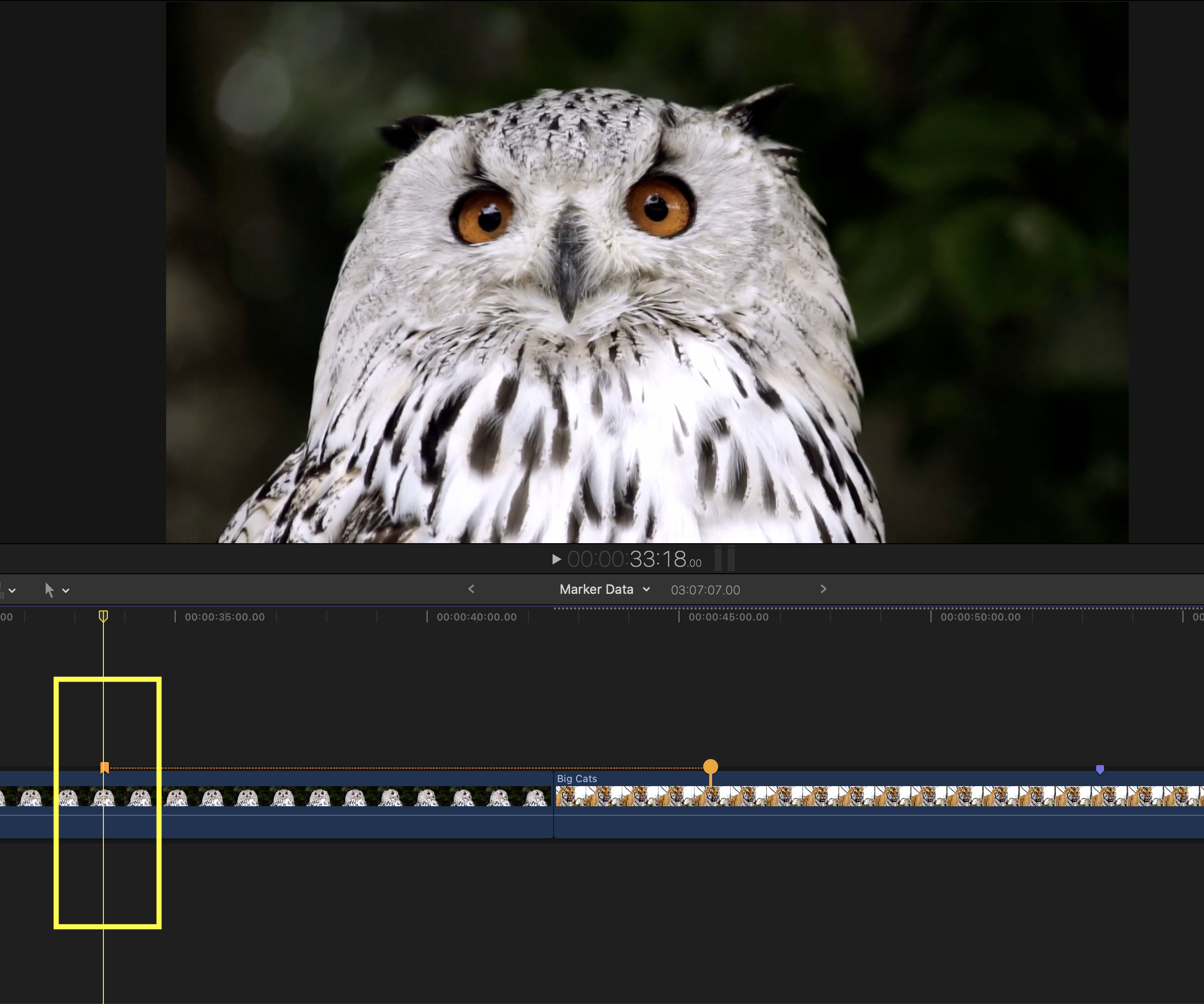
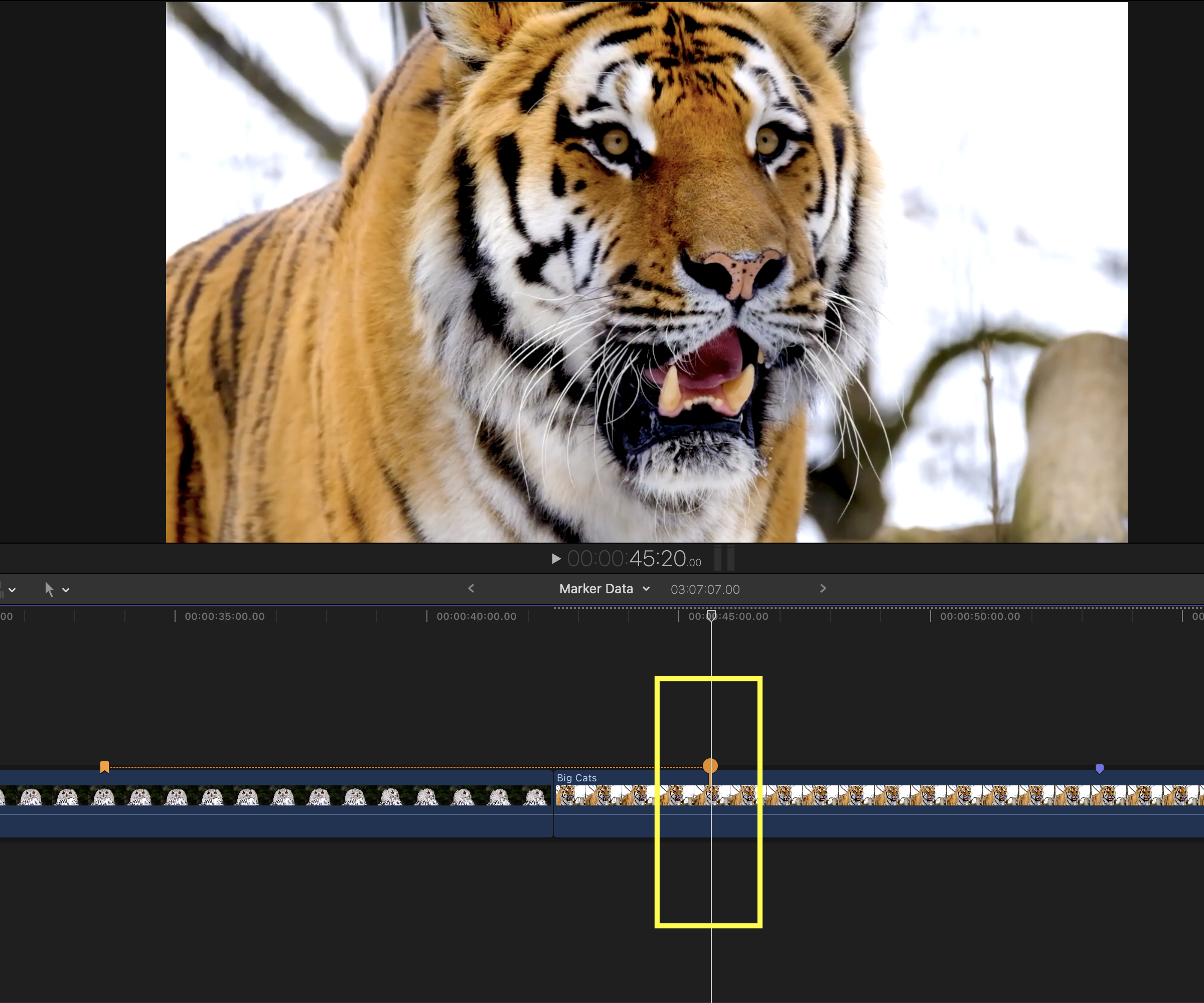
Enabling the `Use Chapter Marker Pin Image` feature permits **Marker Data** to utilise the location of the `Chapter Pin` for image extraction.
!!!info Info
In both states, chapter markers's timecode would be identical on both image labels and in the data set. When `Use Chapter Marker Pin Image` is Enable, only the image will change.
!!!
+++ Use Chapter Marker Pin Image (Disable)
+++ Use Chapter Marker Pin Image (Enable)
+++
### Skip Image Generation
By [!badge text="Default"] Marker Data will always look for accompanying movie file (`.mov` or `.mp4`) in directory where the `.fcpxmld` or `.fcpxml` resides. Activating the Skip Image Generation option allows **Marker Data** to circumvent the inclusion of the movie file during processing.
This option is applicable in situations wherein:
- You do not require exporting a movie file.
- You do not require extraction of images.
### Open Files and Folders Access
Select the `Open Files and Folders Access` link to open macOS's Files and Folders Access Settings.
### Open Full Disk Access
Select the `Open Full Disk Access` link to open macOS's Full Disk Access Settings.
!!!info Info
Due to stringent security protocols implemented within macOS, you will encounter a prompt necessitating your authorisation to grant Files and Folders Access to **Marker Data** upon initial extraction. In the eventuality of managing multiple Configurations with varying `Export Destination` settings scattered across your local drive, you can confer **Marker Data** with Full Disk Access privileges.
!!!
## Roles
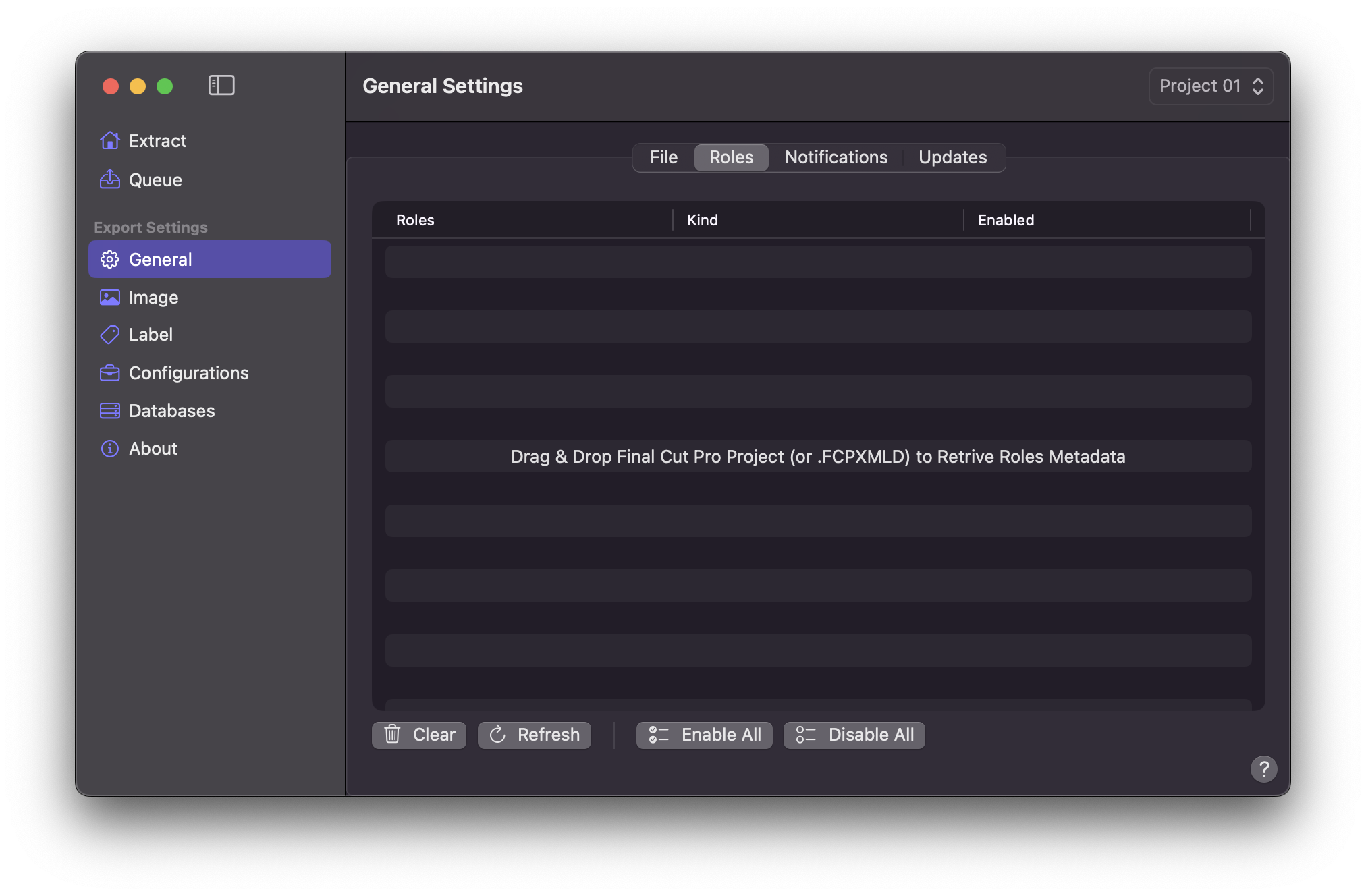
By [!badge text="Default"], **Marker Data** extracts all roles. However, the Role tab permits targeted extractions based on your specific role selections. The Role tab is always synchronised with the [Roles tab of the Workflow Extension](/user-guide/workflow-extension/#roles). Should you wish to save your roles selection, you may perform [Update Active Configuration](/user-guide/configurations/#update-active-configuration) to preserve your choices.
### Clear
The `Clear` button removes any existing Roles that have been retrieved.
### Refresh
**Marker Data** automatically synchronises role selections with the [Workflow Extension’s Roles tab](/user-guide/workflow-extension/#roles). However, delays in synchronisation may occur in large and complex timelines. In such instances, you may use the `Refresh` button to initiate and enforce a manual synchronisation.
### Enable All
Pressing `Enable All` will check all roles selection.
### Disable All
Pressing `Disable All` will uncheck all roles selection.
## Notification
### Notification Frequency
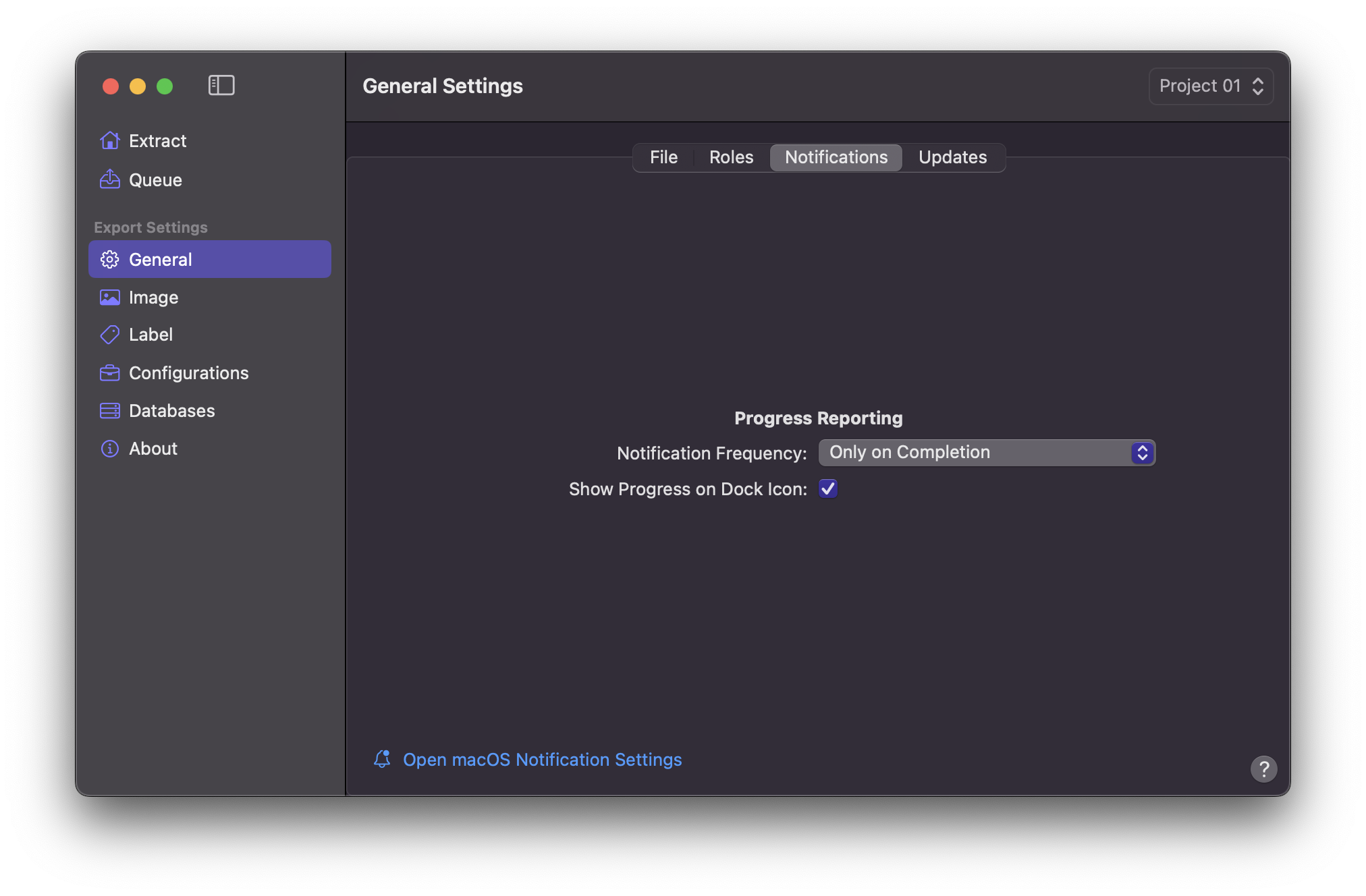
**Marker Data** seamlessly integrates with the native macOS Notifications framework, delivering timely alerts upon the successful completion of tasks.
Select your desired Notification Frequency.
- **Never**
- **Only on Completion** [!badge text="Default"]
- **All Steps**
### Show Progress on Dock Icon
By [!badge text="Default"] Progress Bar is shown on **Marker Data**'s dock icon.
### Open macOS Notification Settings

Select the `Open macOS Notification Settings` link to open macOS Notification Settings. Navigate to **Marker Data** to manage notification settings.
!!!info Info
**Marker Data** will only show up in the macOS Notification Settings solely after the initial prompting attempt. If **Marker Data** is the focused application, notifications won’t make a sound or appear on the screen.
!!!
## Updates
### Check for Updates
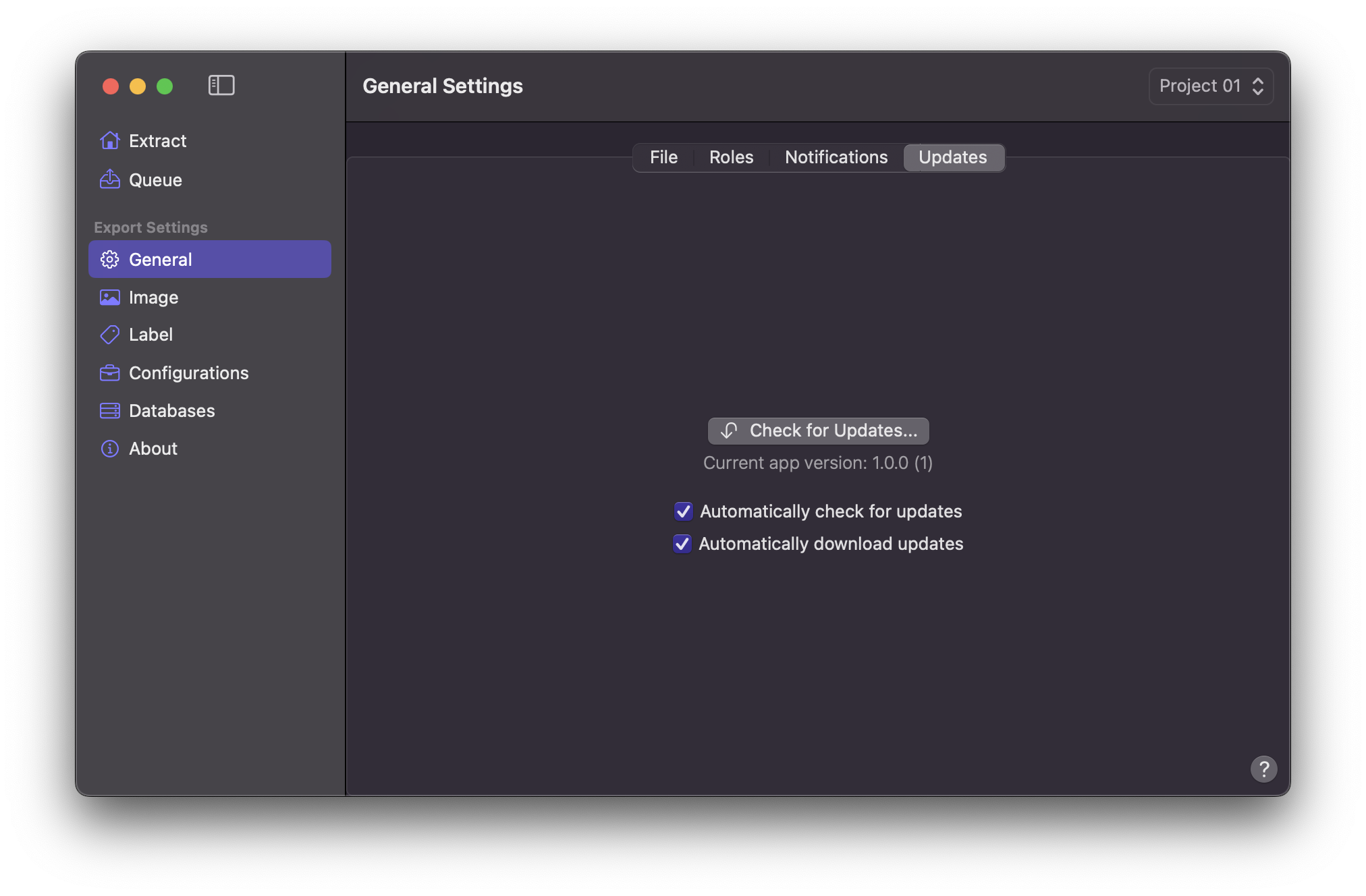
Pressing `Check for Updates` button would check for the latest release for **Marker Data**.
### Automatically check for updates
You can enable `Automatically check for updates` to automatically check for the latest release for **Marker Data**.
### Automatically download updates
Enabling `Automatically download updates` would automatically download for the latest release of **Marker Data**.