# Sending to Notion
## Notion Database Profile
1. [Create Your Notion Database Profile](/user-guide/databases/#creating-notion-database-profile).
!!!info Info
`Rename Key Column` option will not be used for this demonstration.
!!!
2. Duplicate Notion's [Marker Data Template](/user-guide/databases/#notion-template) in to your Notion account.
!!!info Info
You possess the liberty to tailor the [Marker Data Template](/user-guide/databases/#notion-template) to suit your preferences, affording you the opportunity to incorporate additional [Notion Database properties](https://www.notion.so/help/database-properties) as per your discretion. While it is recommended to refrain from the removal of existing properties, should such an inclination arise, it is imperative to note that **Marker Data** will disregard any column properties that have been deleted.
!!!
3. [Obtain your Database URL](/databases/notion-prerequisite/#obtain-your-database-url) by going to your Notion Database, and right-click on the view and click **Copy link to view**.
4. Paste the URL into `Notion Database URL` field.
!!!info Info
It is presumed that you have acquired and inputted your [Notion Integration Token](/databases/notion-prerequisite#obtain-your-integration-token).
!!!
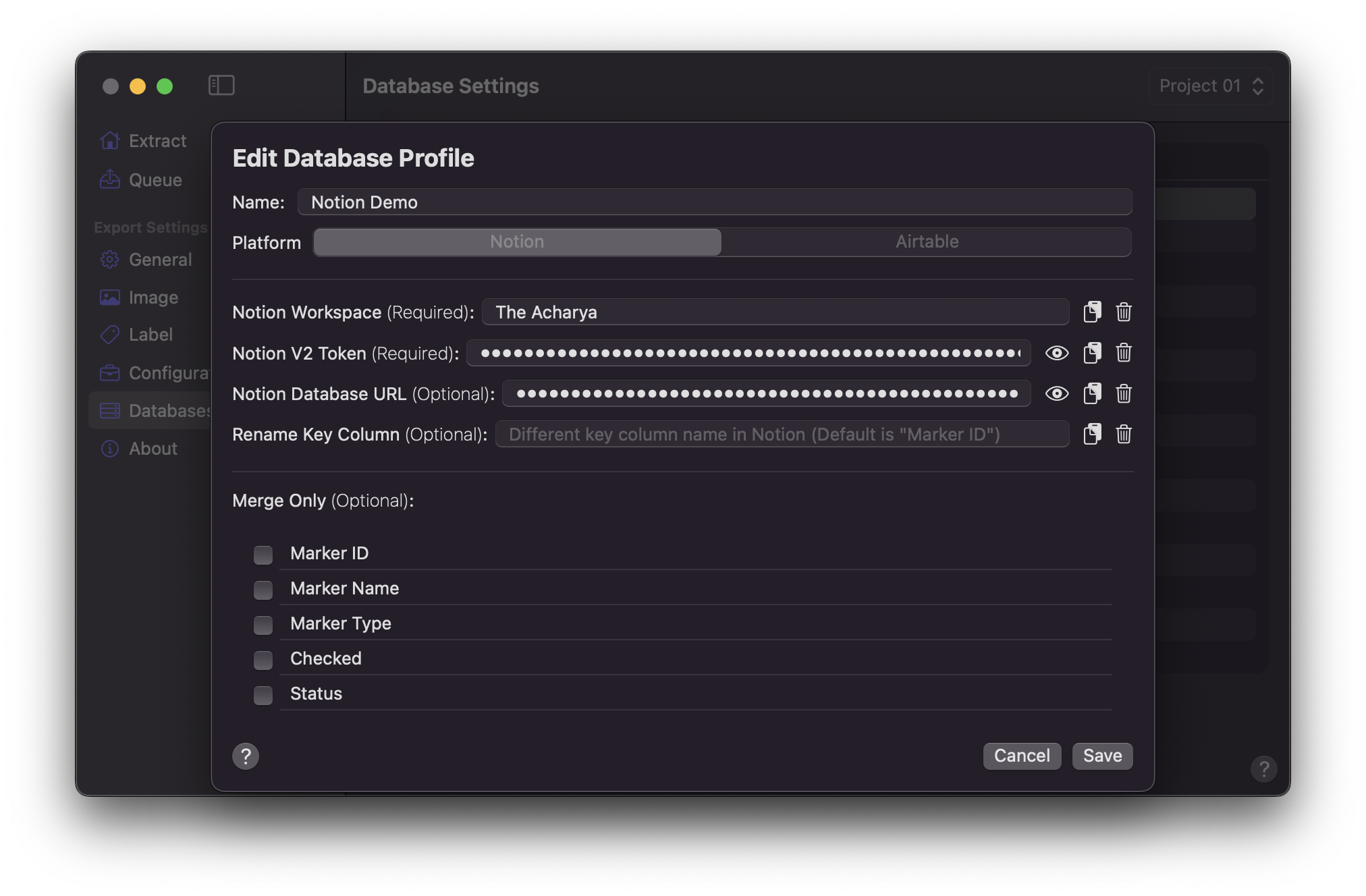
5. Click `Save` once values are entered.
## Configuration Setup
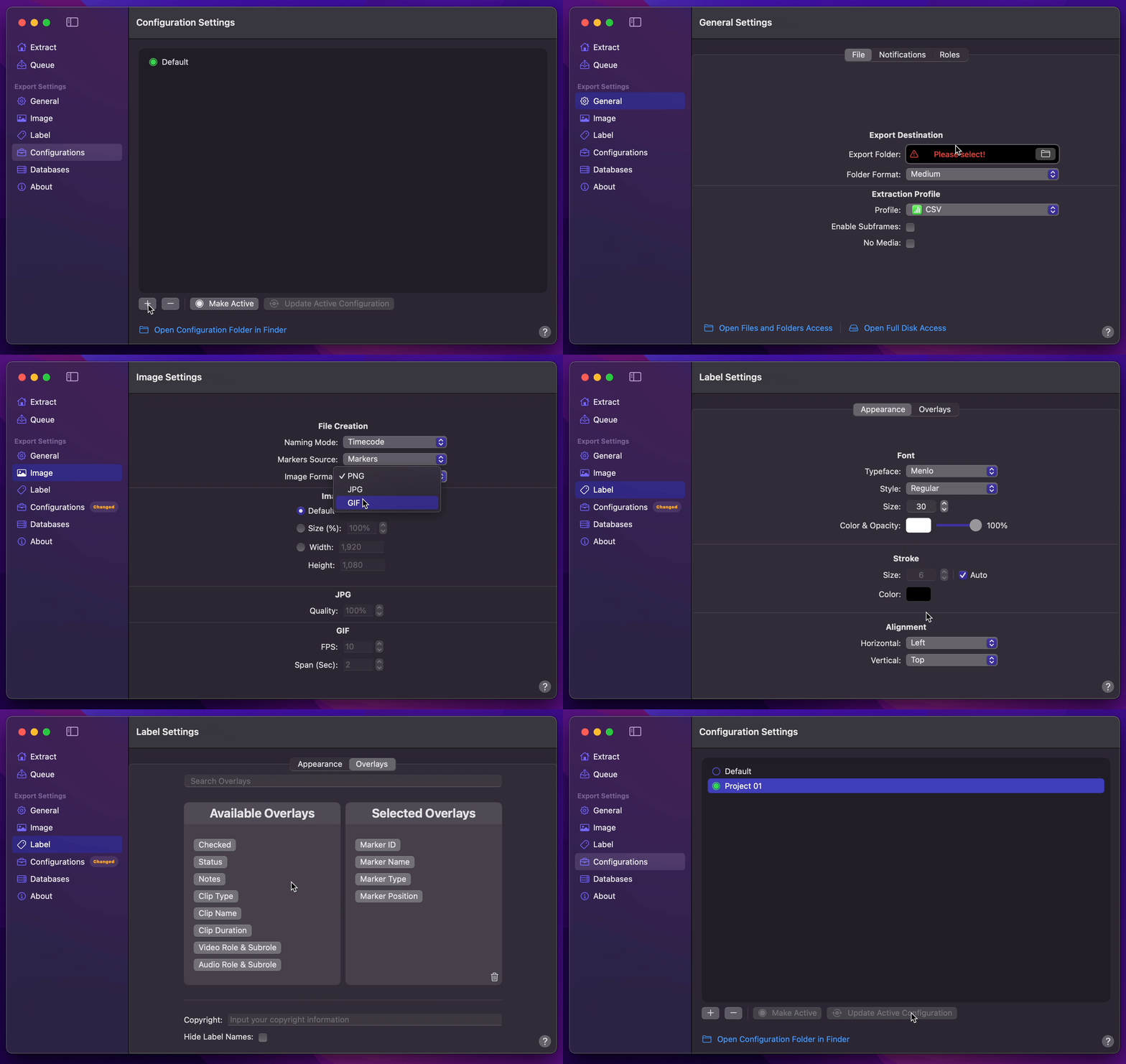
1. [Create Your Configuration](/user-guide/configurations/#add-configuration).
2. You can select your desired Export Destination by clicking on the [Folder Icon](/user-guide/general/#export-destination).
3. You can select your Notion Database Profile as your [Extraction Profile](/user-guide/general/#extraction-profile).
4. You can set [Image Format](/user-guide/image/#image-format) to `GIF`.
5. Select your desired [Overlays](/user-guide/label/#overlays).
6. Return back to Configurations to [Update Active Configuration](/user-guide/configurations/#update-active-configuration)
## Final Cut Pro to Notion (Marker Data Template)
1. Select `Marker Data Source` or `Marker Data H.264` from [Final Cut Pro's Share menu](user-guide/share-destination/).
2. **Marker Data** will start to perform its task.
## Updating Specific Column Data
In the event that you seek to update and merge select column data, you may employ the 'Merge only' option. In this example, our focus is solely on updating the `Notes` column. Nevertheless, it is imperative to also enable the `Icon Image` option to ensure the page icons of individual Notion entries remain intact. Otherwise, page icon will be empty.
!!!info Info
The utilisation of the 'Merge Only' column feature is presently confined exclusive to the Notion Database Profile.
!!!