# Sending to Logic Pro
## Configuration Setup
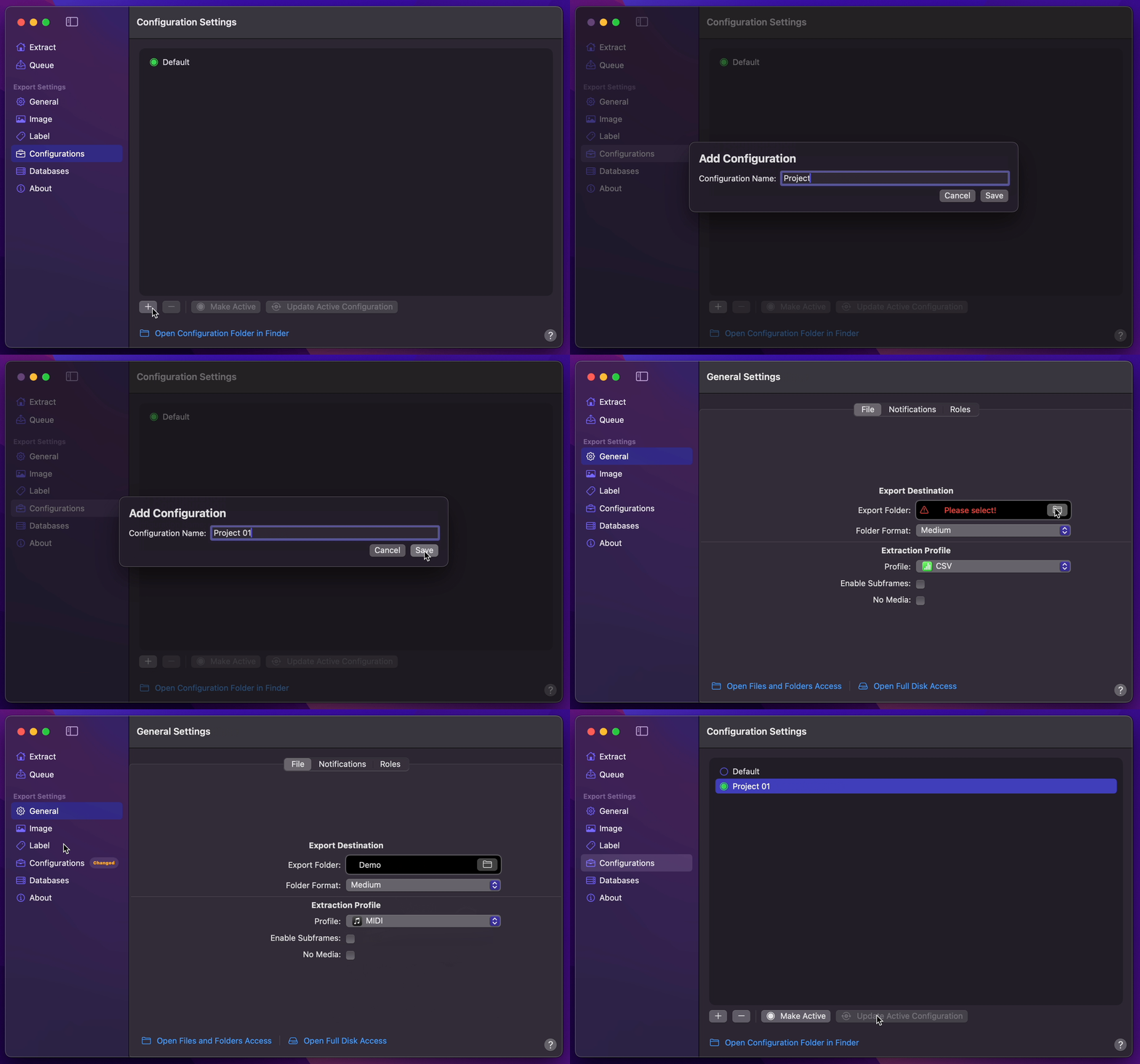
1. [Create Your Configuration](/user-guide/configurations/#add-configuration).
2. You can select your desired Export Destination by clicking on the [Folder Icon](/user-guide/general/#export-destination).
3. You can select MIDI as your [Extraction Profile](/user-guide/general/#extraction-profile).
4. Return back to Configurations to [Update Active Configuration](/user-guide/configurations/#update-active-configuration)
## Final Cut Pro to Logic Pro
!!!info Info
This demonstration presupposes the presence of an already opened Logic Pro Project session, within which you intend to incorporate the extracted Markers from **Final Cut Pro**.
!!!
1. After **Marker Data** completes its extraction task, drag `.mid` file onto Logic Pro's App icon, or right-click on the `.mid` file to `Open With` `Logic Pro.app`.
!!!info Info
You may want to drag the Project's end handle to the right to be able to see all the Markers, as it will interpret the project to only be a bar long on first open. (But it's not necessary if we just want to copy and transfer the Markers.)
!!!
2. Open the Logic Pro's Marker List window.
3. Select `Show Event Position and Length as Time` under `View` menu.
!!!info Info
This will display timecode instead of bars & beats to preview their time position.
!!!
4. Select all the Markers by pressing `⌘` `A` on your keyboard.
5. With all the Markers are selected, select `Copy` under `Edit` menu.
!!!info Info
Take note of the timecode of the earliest marker for reference later.
!!!
5. Switch to the existing Project session you want to transfer the Markers into.
!!!info Info
Go to Logic Pro's `Synchronization` options under `File`, `Project Settings`. Ensure that `Bar Position ` is set to a timecode that is equal to or earlier than the first marker's timecode. Also ensure that Frame Rate matches with **Final Cut Pro**'s timeline Frame Rate.
!!!
7. Open Marker List window of your existing project, select `Paste` under `Edit` menu.