# Creating YouTube Chapters Markers

## Configuration Setup
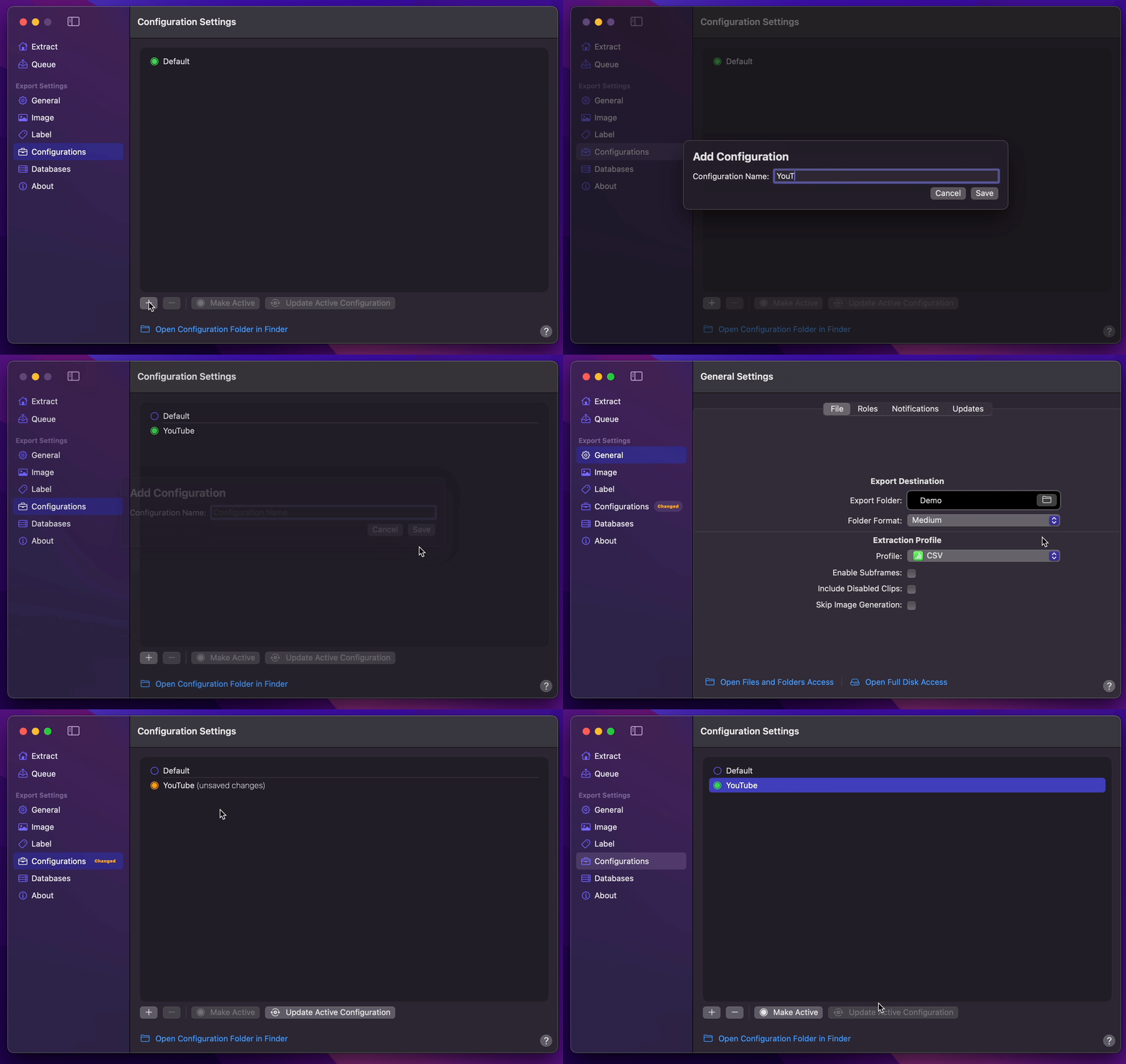
1. [Create Your Configuration](/user-guide/configurations/#add-configuration).
2. You can select your desired Export Destination by clicking on the [Folder Icon](/user-guide/general/#export-destination).
3. You can select YouTube Chapters as your [Extraction Profile](/user-guide/general/#extraction-profile).
4. Return back to Configurations to [Update Active Configuration](/user-guide/configurations/#update-active-configuration)
## Final Cut Pro to YouTube Chapters Markers
1. Click the `Extensions` button on the left side of the **Final Cut Pro**’s toolbar and select **Marker Data**'s Workflow Extension.
2. Drag your desired timeline to Workflow Extension's Extract Tab.
3. **Marker Data** will launch to commence extraction and conversion.
4. **Marker Data** will create `.txt` file with YouTube compatible chapters markers.
5. You can copy and paste the Chapters Markers from the `.txt` file into your appropriate video within you [YouTube Studio](https://support.google.com/youtube/answer/9884579?hl=en).