# Sending to Airtable

## Airtable Database Profile
1. [Create Your Airtable Database Profile](/user-guide/databases/#creating-airtable-database-profile).
!!!info Info
`Rename Key Column` option will not be used for this demonstration.
!!!
2. Duplicate Airtable's [Marker Data Template](/user-guide/databases/#airtable-template) in to your Airtable account.
!!!info Info
You possess the liberty to tailor the [Marker Data Template](/user-guide/databases/#airtable-template) to suit your preferences, affording you the opportunity to incorporate additional [Airtable field types](https://support.airtable.com/docs/field-type-overview) as per your discretion. While it is recommended to refrain from the removal of existing field types, should such an inclination arise, it is imperative to note that **Marker Data** will disregard any field types that have been deleted.
!!!
3. [Obtain your Base ID and Table ID](/databases/airtable-prerequisite/#obtain-your-base-id--table-id) by going to your browser's address bar.
4. Paste Base ID and Table ID into `Airtable Base ID` and `Airtable Table ID` field respectively.
!!!info Info
It is presumed that you have acquired and inputted your [Airtable Personal Access Token](/databases/airtable-prerequisite/#obtain-your-personal-access-token).
!!!
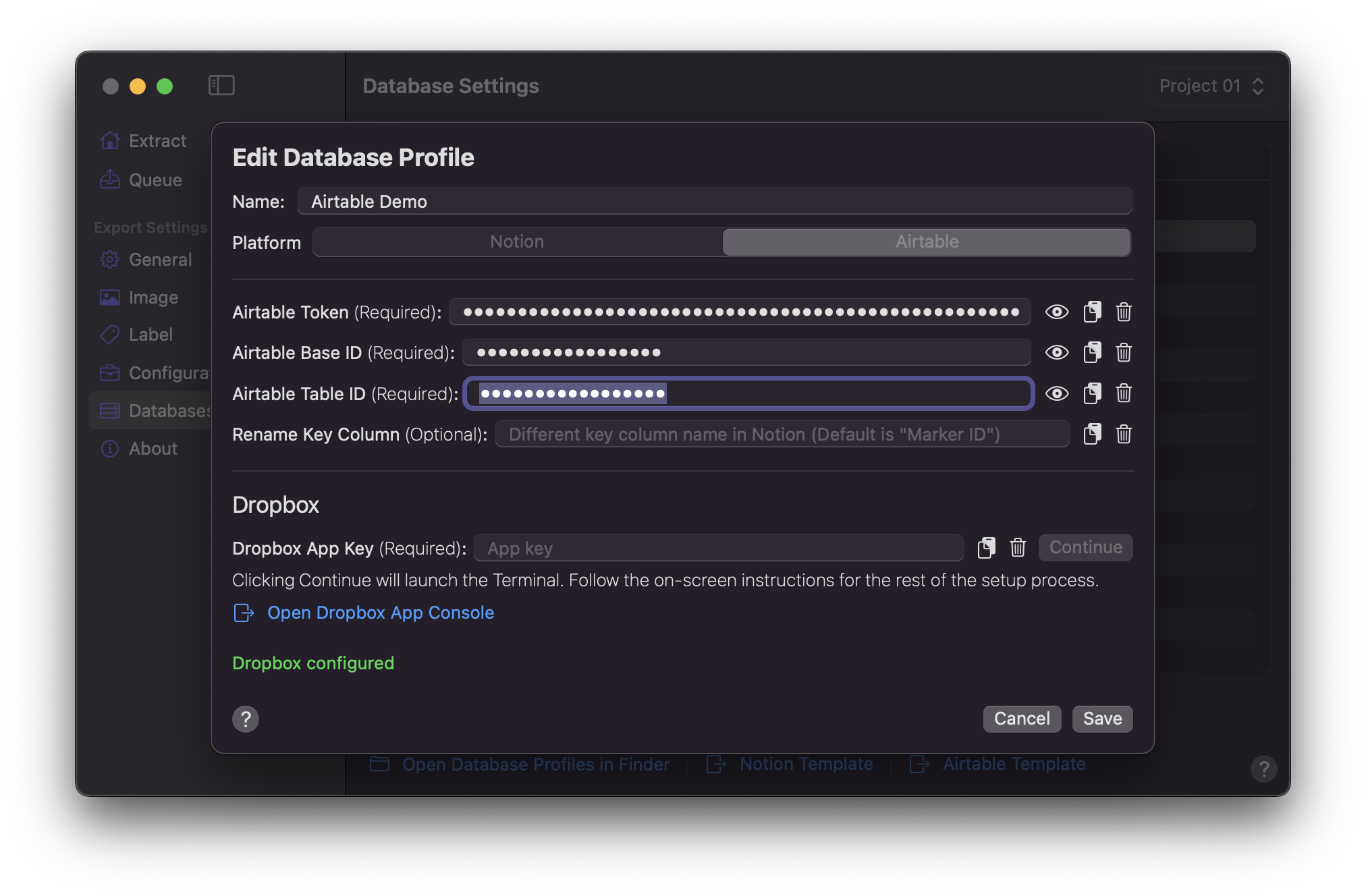
5. Click `Save` once values are entered.
## Configuration Setup
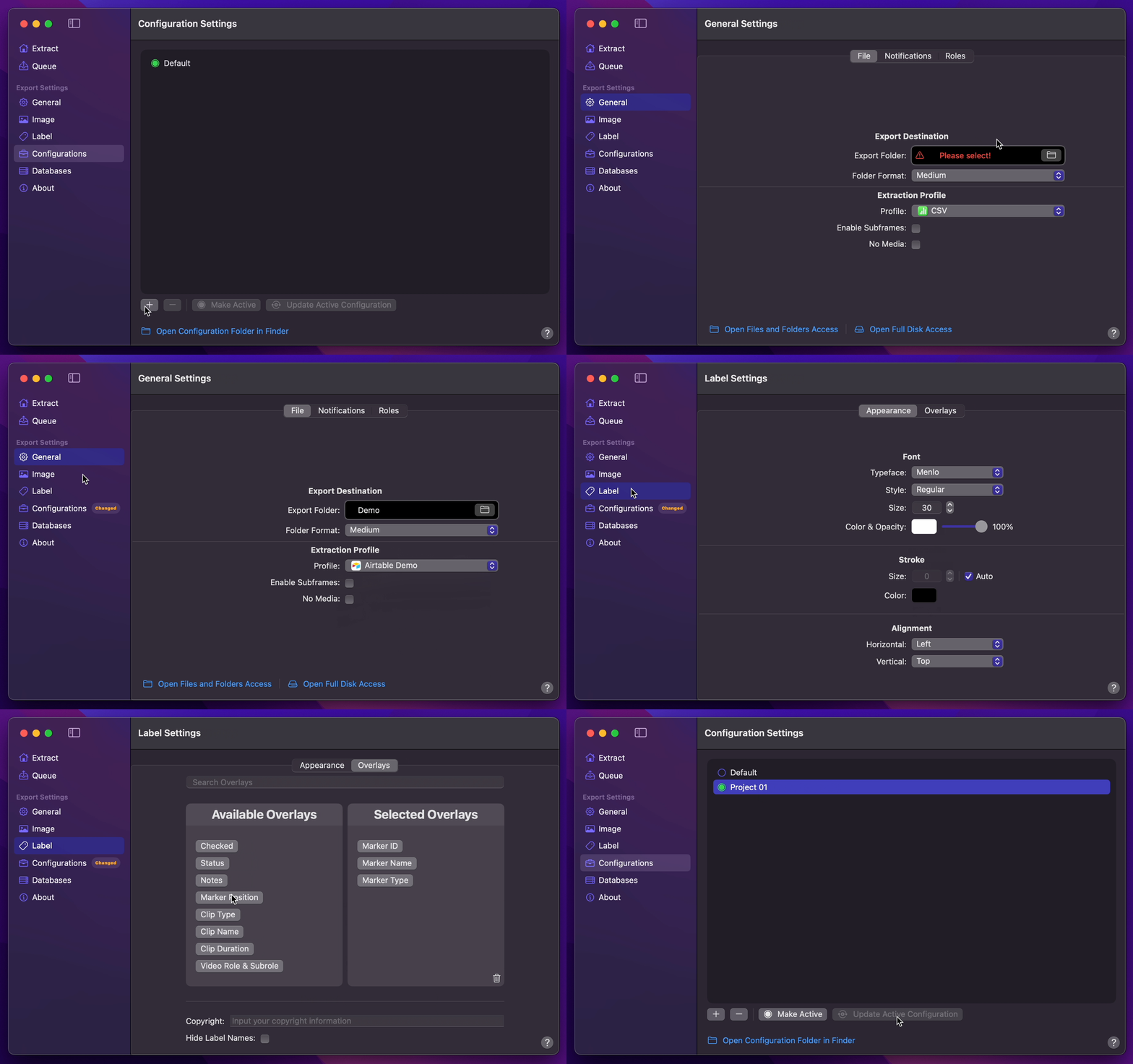
1. [Create Your Configuration](/user-guide/configurations/#add-configuration).
2. You can select your desired Export Destination by clicking on the [Folder Icon](/user-guide/general/#export-destination).
3. You can select your Airtable Database Profile as your [Extraction Profile](/user-guide/general/#extraction-profile).
4. You can set [Image Format](/user-guide/image/#image-format) to `GIF`.
5. Select your desired [Overlays](/user-guide/label/#overlays).
6. Return back to Configurations to [Update Active Configuration](/user-guide/configurations/#update-active-configuration)
## Final Cut Pro to Airtable (Marker Data Template)
1. Select `Marker Data Source` or `Marker Data H.264` from [Final Cut Pro's Share menu](user-guide/share-destination/).
2. **Marker Data** will start to perform its task.